

Build a leadership report from blocks
How to create a leadership report, set its scope, add and configure blocks, write your own commentary, reorder blocks and drill into any row without changing the report.
On this page
A leadership report is a set of blocks that all read from the same survey. You choose the blocks, the order and the commentary; the figures fill in from the report's scope.
Leadership Reports is for Super Admins and is available on request through your Success Manager. If you do not see Leadership Reports under Analyse in the sidebar, it is not switched on for your account yet.
Create a report
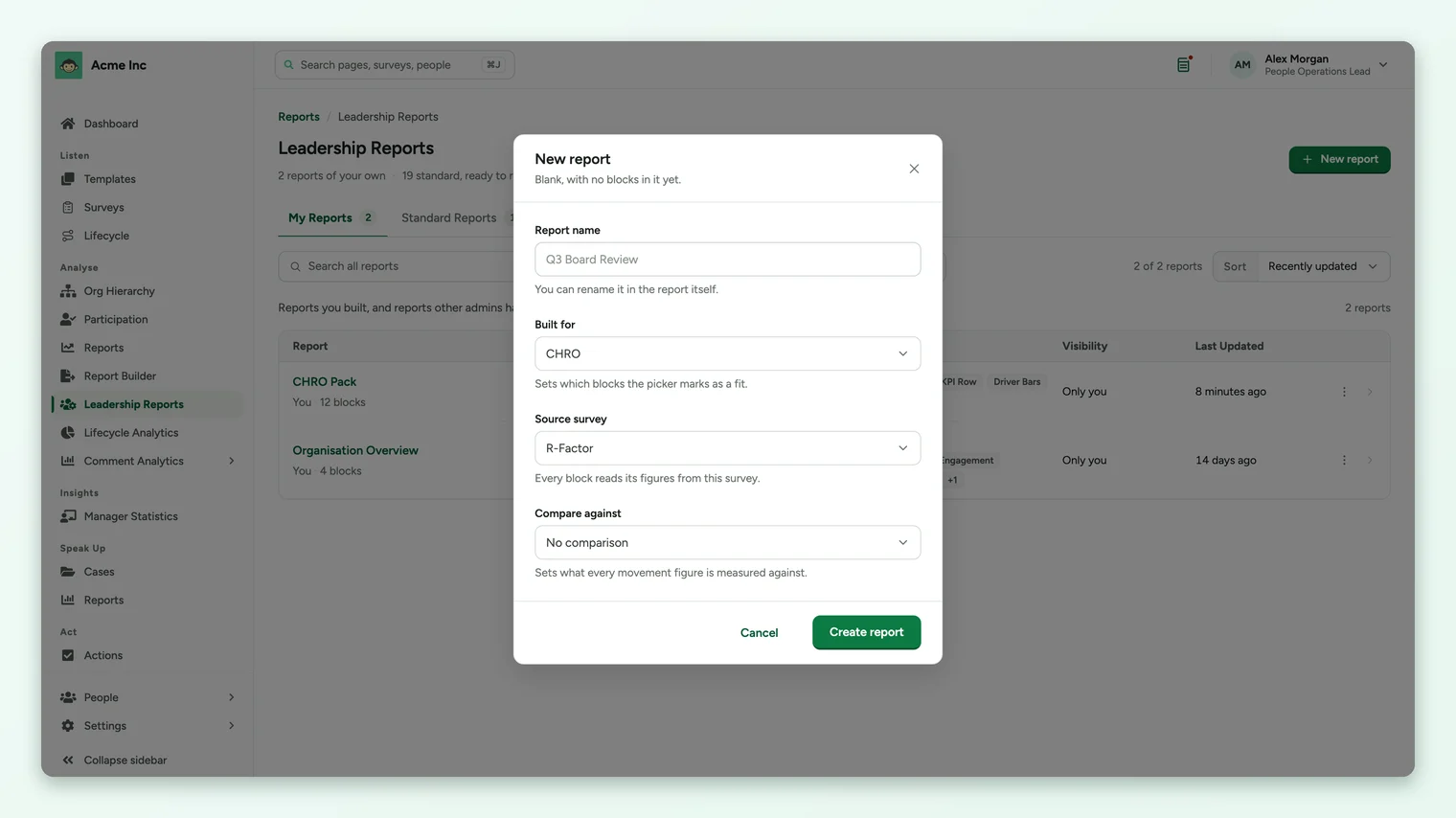
- 1Choose New report on the Leadership Reports page.
- 2Name it. You can rename it in the report itself.
- 3Pick Built for: CHRO, HRBP, Leadership Team or General. This sets which blocks the library marks as a fit.
- 4Pick the Source survey. Every block reads its figures from this survey.
- 5Pick Compare against if you want movement figures, or leave it as No comparison.
- 6Choose Create report. The report opens blank, ready for blocks.
To start with blocks already in place, use a template instead. See Use report packs and standard reports.
Set the report scope
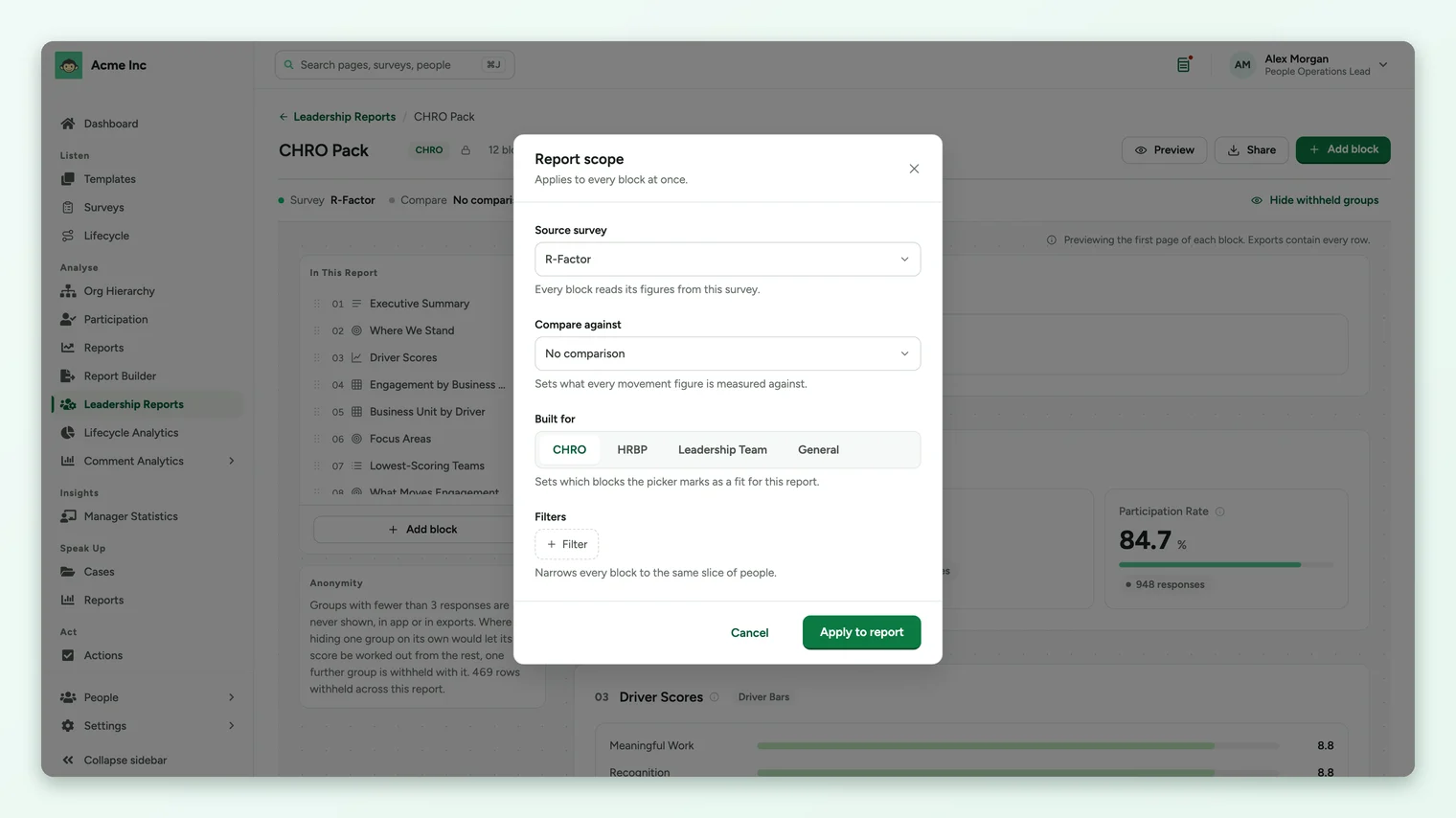
Edit scope, in the bar under the title, changes the source survey, the comparison, Built for and the filters for every block at once. Filters narrow every block to the same slice of people, such as one location.
Add blocks
Choose Add block to open the block library. Blocks are grouped so you can find them quickly, and each one shows a preview and what it answers before you insert it.
| Group | Blocks |
|---|---|
| Headlines | KPI Row, Trend, Distribution |
| Breakdowns | Score Table (any metrics broken down by up to three attributes), Driver Bars, Heatmap, Ranked List |
| Analysis | Focus Areas, What Moves Engagement, What Explains Engagement, What Preceded People Leaving, What Makes an Advocate, Where Opinion Is Split |
| Comments and actions | Comment Sentiment, Action Plans |
| Commentary | Narrative |
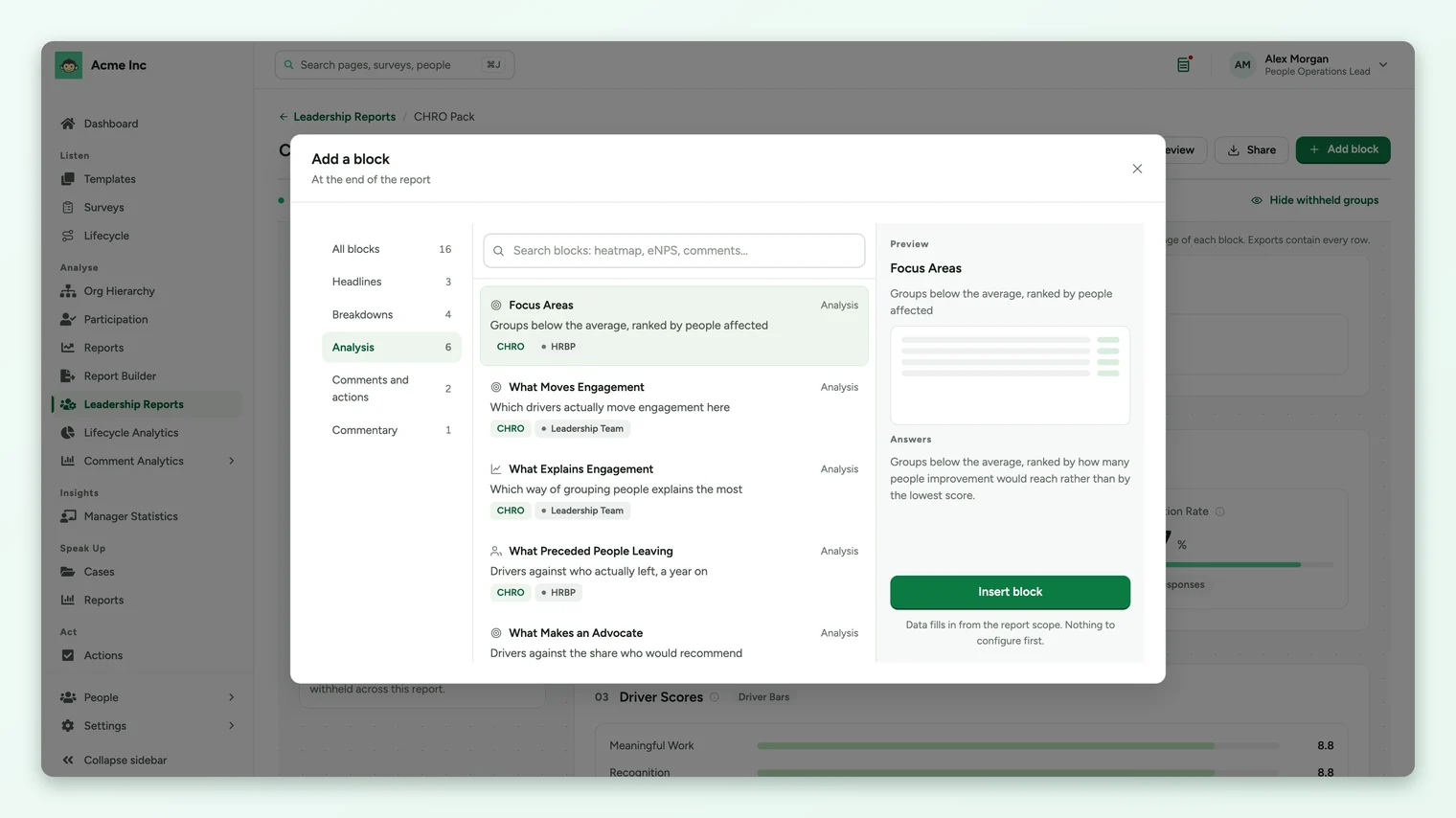
Blocks marked with the report's audience (for example CHRO or Leadership Team) are the ones that suit it. A new block fills in from the report scope; there is nothing to configure first. What each analysis block shows is covered in Read the analysis in a leadership report.
Configure a block
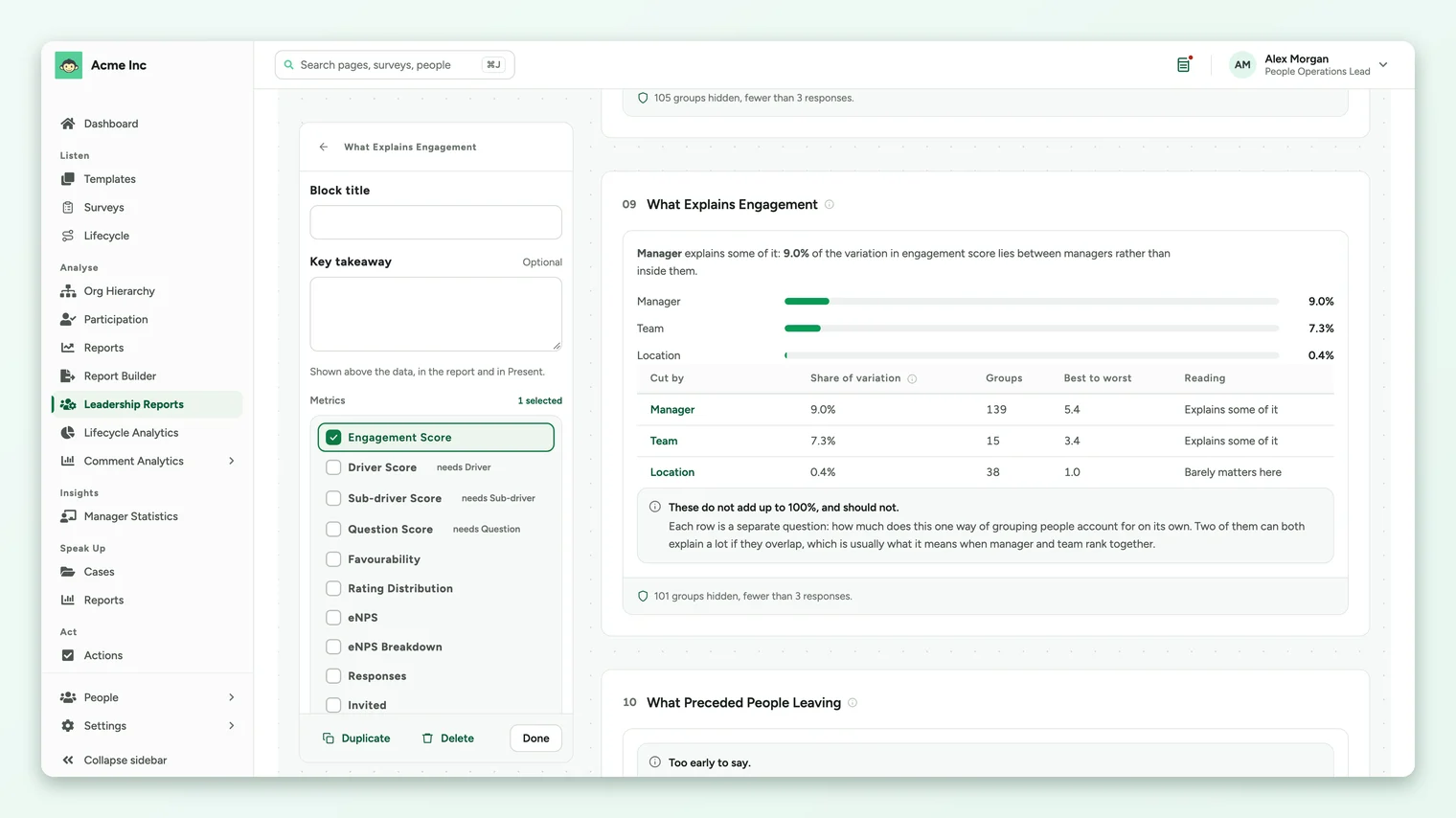
Selecting a block opens its settings beside the report:
- Block title: the heading readers see.
- Key takeaway (optional): one line shown above the data, in the report and in Present.
- Metrics and attributes: what the block measures and how it is broken down. A metric that needs a particular attribute says so.
- Duplicate and Delete, and Done to close the settings.
Write your own commentary
Add a Narrative block wherever the report needs your words: an executive summary at the top, notes beside a result, or context for the leadership team. The packs start with one already in place.
Reorder blocks
In In This Report, drag a block by its handle to move it. The handle also works from the keyboard: focus it and use the arrow keys.
Drill into a row
When a result raises a follow-up question, drill into it instead of changing the whole report. Select a row's drill control to open Drill down, then pick an attribute under Break down by and a Metric.
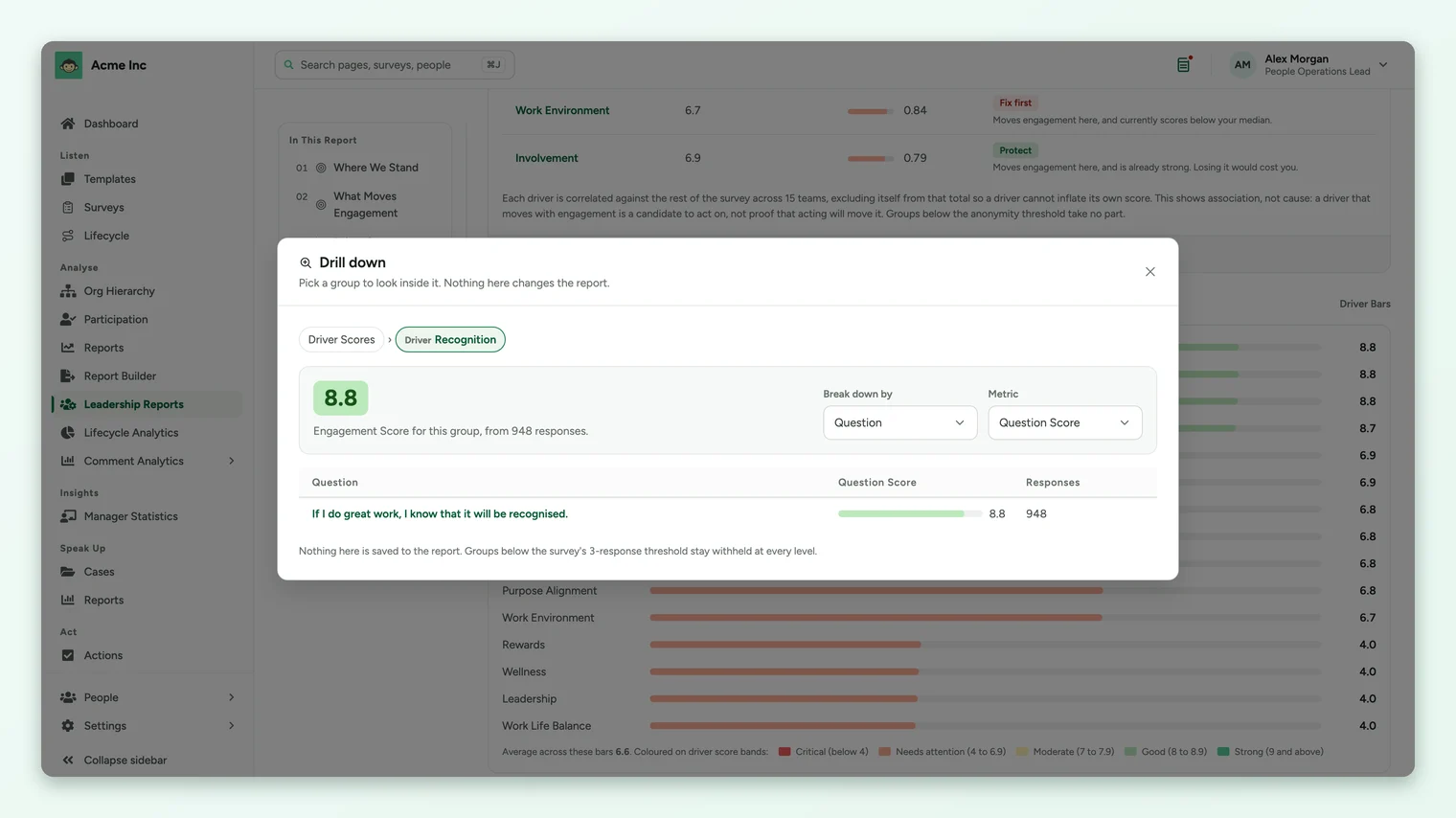
- A drilldown goes one level deep.
- Nothing in the dialog is saved to the report.
- Groups below the survey's anonymity threshold stay withheld at every level.
Frequently asked questions
Can another admin edit my report?
No. Only the Super Admin who owns a report can edit it. Other Super Admins who can see it can drill into it or duplicate it.
Why does a block say there is not enough data?
Some blocks need a minimum number of groups with enough responses, or data the account does not hold. The block says what it needs instead of showing a figure that would mislead.
How many rows does a block show?
The editor previews the first page of each block. Exports contain every row.
Where to go next
Your feedback helps us improve the Help Center.